Earring Templates
Earring Templates: What Each Setting Does (and How to Use Them)
The Earring Templates panel is the fastest way to start an earring design in Beadessa, because the shape is already defined for you. Instead of starting from a blank grid, you choose a template and Beadessa creates a project that already includes:
- An outline (the earring shape boundary)
- A brick stitch section on top (the structured “body” of the earring)
- A fringe section below (the hanging strands)
Think of it like a coloring book: the template gives you the “lines,” and you just color inside the outline.
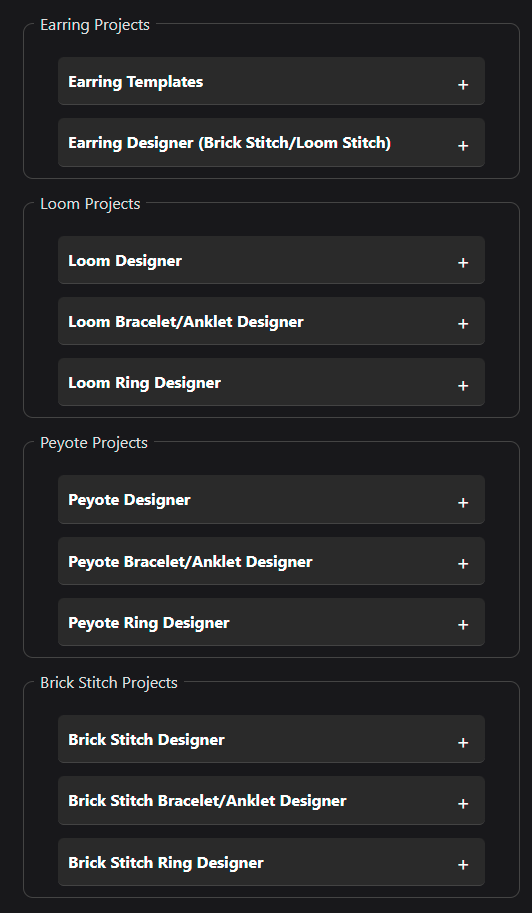
Where to Find It: Go to Templates → Earring Projects → Earring Templates. This panel is only for starting an earring project from a built-in template (it’s not the same thing as exporting or image tools).
1. Enable Live Preview
When Enable Live Preview is checked, Beadessa updates the template details instantly as you change settings like Bead Type or the selected Template. This makes it easy to flip through options and immediately see things like the approx size and total bead count update in real time, and you can also see the template design itself update live, including the outline shape, so you can compare different earring styles at a glance before you commit to creating a project.
2. Materials → Bead Type
The Bead Type dropdown tells Beadessa what kind of bead you’re designing with (for example, Miyuki Delica 11/0), and it matters a lot because it affects the real-world sizing math behind the template. Your selected bead type influences the approx width and length (in inches), how the design visually “reads” (Delicas tend to look more uniform and grid-like), and the overall scale of the finished earring. The important thing to know is that the outline and stitch layout stay the same, but the physical measurements shown are calculated based on the bead type you choose.
Also, those “Approx” dimensions are exactly that—estimates—because your final size can still vary depending on thread tension, small differences between bead brands, and the hardware you use (like jump rings or ear wires). Best practice is to choose your Bead Type first, before you spend time coloring and refining a design.
Select Template → Template Dropdown
What it does: This dropdown chooses the earring shape + layout you want to start from.
In the example image, the selected template is: Classic Straight Fringe (11×50)
That “(11×50)” is a quick hint at the design grid size:
- 11 columns wide (brick stitch width)
- 50 rows tall (overall template height reference)
What changes when you pick a different template:
- The outline shape
- The brick stitch top shape
- The fringe layout design below
What doesn’t change:
- The basic workflow: generate template → color inside the outline → export.
Pro tip: Choose the template based on how you want the earrings to “hang”:
- Wider top sections often feel bolder and more geometric
- Narrower tops with longer fringe feel more delicate / flowy
Approx Width / Approx Length
These two boxes act as quick “sanity checks” so you can instantly confirm the size and scale of the earring you’re about to create, and see whether it will be small and subtle or longer and more dramatic before you spend any time coloring in your design.
Approx Width shows the estimated width of the earring in inches (for example, 0.73″) along with the column count (for example, 11 columns). This is a simple way to gauge how wide the brick stitch section will be. If you’re aiming for smaller, lighter earrings, choose templates with fewer columns or switch to a smaller bead type. If you want more of a bold, statement look, go with a wider template.
Approx Length shows the estimated overall length in inches (for example, 3.05″) along with the row count (for example, 50 rows). This helps you predict how long the finished earring will be from top to bottom. If you prefer shorter earrings that are less likely to snag on hair or clothing, choose a shorter template. If you want a more dramatic fringe style, go longer. Just keep in mind that length is still an estimate because fringe drape can change depending on how the earring is worn and how tight or loose your tension is.
Total Beads
This displays the total bead count for the selected template (example: 454).
What it’s useful for:
- Estimating how long the design might take
- Estimating material usage
- Comparing templates realistically (two designs may look similar but differ a lot in bead count)
Good to know:
- This number typically includes both:
- the brick stitch section beads
- the fringe beads
Create from Project Template (Button)
What it does: This is the “go” button. Clicking it generates a brand-new earring project using the settings you selected.
What happens after you click it:
- Beadessa creates the earring project with the outline already in place
- You can move into designing immediately (coloring inside the shape)
Best practice workflow:
- Choose Bead Type
- Choose Template
- Confirm size + bead count
- Click Create from Project Template
- Start coloring the design
How the Outline Works (Not Obvious Until You Use It)
Earring templates are outline-based, meaning:
- The earring shape is already defined
- Only the beads inside the outline are meant to be edited
- The outline keeps your design clean and prevents “painting” outside the intended earring silhouette
And since these are earring templates, the structure is typically:
- Brick stitch on top (stable, structured area)
- Fringe below (movement, drape, flow)
So you’re not building the shape from scratch — you’re designing within a shape that already makes sense as a real earring.
Quick Tips Before You Start Designing
- Pick bead type first (it affects physical size).
- Flip through templates with Live Preview on to compare bead counts and dimensions fast.
- If you want a “pair,” design one side first, then duplicate/mirror as needed (depending on how you like to do matching sets).
- If your goal is selling patterns: pick templates with clear silhouettes and reasonable bead counts (people love designs that don’t take forever).
Mini FAQ
Why does it say “Approx” width/length?
Because real beadwork size varies with bead brand, thread tension, and finishing hardware.
What’s the difference between the brick stitch and fringe areas?
Brick stitch is the structured top “panel.” Fringe is the hanging strands below that add movement.