Canvas Tab Settings
The Canvas tab is all about how you view and navigate your design while you work. These settings do not change your pattern data or your bead colors. They just control the camera view of the canvas so you can zoom in for detail work, pan around quickly, and keep your workspace comfortable.
Canvas Background Color
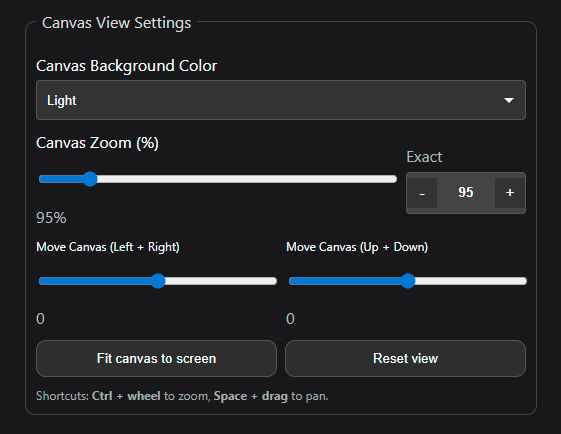
This setting changes the background behind your design so you can see your beads more clearly. A lighter background can make dark colors easier to judge, while a darker background can reduce eye strain and make bright colors pop. If you ever feel like your design looks “off,” it is worth toggling the background because your eyes perceive contrast differently depending on what is behind the beads.
Good to know:
- This is a viewing preference only. It does not change your actual design colors.
- Switching backgrounds is useful when checking subtle color differences.
Canvas Zoom (%)
The zoom control changes how close you are to the design on screen. Zooming in helps with precision painting and fine edits, while zooming out helps you judge the overall composition and balance of the pattern. The percentage gives you a quick reference for how magnified your current view is, so you can return to a comfortable working zoom whenever you want.
That said, most users will not navigate the canvas using this slider all the time, because the app has faster mouse and keyboard controls for everyday zooming and panning. These zoom controls are here as a reliable backup when you want exact precision, prefer buttons over shortcuts, or just need to quickly reset your view to a specific zoom level.
You have two ways to control zoom in this tab:
- The slider is great for quick adjustments.
- The Exact stepper lets you dial in a specific number (and nudge it up or down with the plus and minus buttons).
Move Canvas (Left + Right) and Move Canvas (Up + Down)
These two sliders let you shift the canvas view horizontally and vertically. Think of them as camera controls for centering your design exactly where you want it on the screen. This is especially helpful when you are zoomed in and want to move to a new area without losing your current zoom level.
A couple quick uses:
- Re-centering the design after zooming in close
- Sliding the canvas to keep the area you are working on in a comfortable spot on your monitor
Fit canvas to screen
This button automatically adjusts the view, so your design fits neatly inside the available canvas area. It is the fastest way to get “back to a clean overview” if you have been zooming and panning a lot. If you ever feel lost on the canvas, this is usually the quickest reset without fully wiping your view settings.
Reset view
Reset view brings you back to your previous working view, which makes it especially useful when you are bouncing between detail work and an overall check. For example, you might be zoomed in and focused on a specific area, click Fit canvas to screen to see the full design, and then use Reset view to jump right back to the exact zoom level and position you were working in before. It is basically a quick “return to where I was” button, so you can review the full layout without losing your place.
Keyboard and mouse shortcuts
These shortcuts make navigation much faster once they become muscle memory:
- Ctrl + mouse wheel to zoom
- Space + drag to pan around the canvas
If you do a lot of detail work, using the shortcuts is usually faster than relying on sliders, because you can stay focused on the design area instead of moving your cursor back and forth to the controls.